Jump links
Jump links help users navigate to different sections within a single page.
Overview
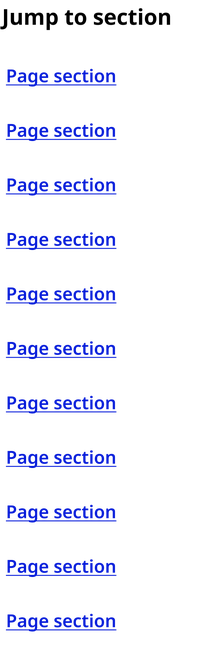
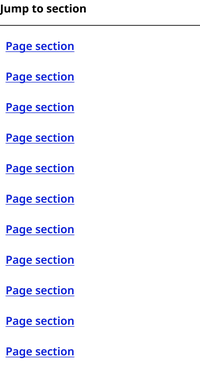
The jump link component includes the heading “Jump to section” and a list of links that correspond to the H2 headings in the page body. Clicking a link jumps the user to a scroll position with the corresponding heading at the top of their viewport. Always pair jump links with the back to top component.
Desktop
Mobile
Usage context
When to use
Jump links should be used when a page contains three or more distinct sections and the content is too long or complex for users to digest quickly while scrolling. Types of pages where jump links make sense include:
- Guides
- Long articles
- Index pages
- About pages
Only use the jump links component for anchoring to headers on the same page as the component.
When to use something else
Don’t use jump links on short pages or pages with fewer than three distinct sections.
Never use jump links for linking to anything other than headers on the same page as the component.
Usage guidelines
Jump links should only appear in lists of three or more.
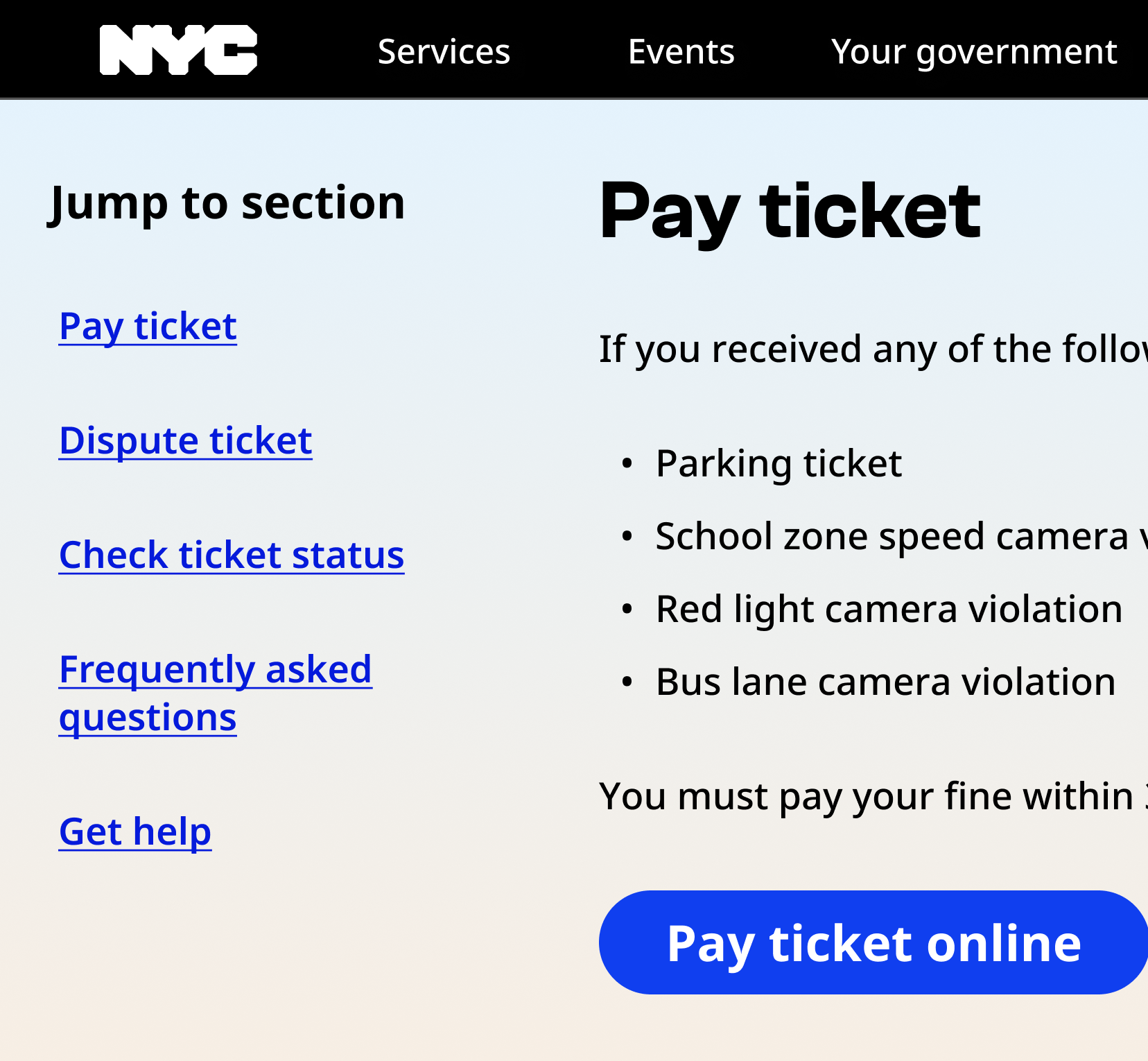
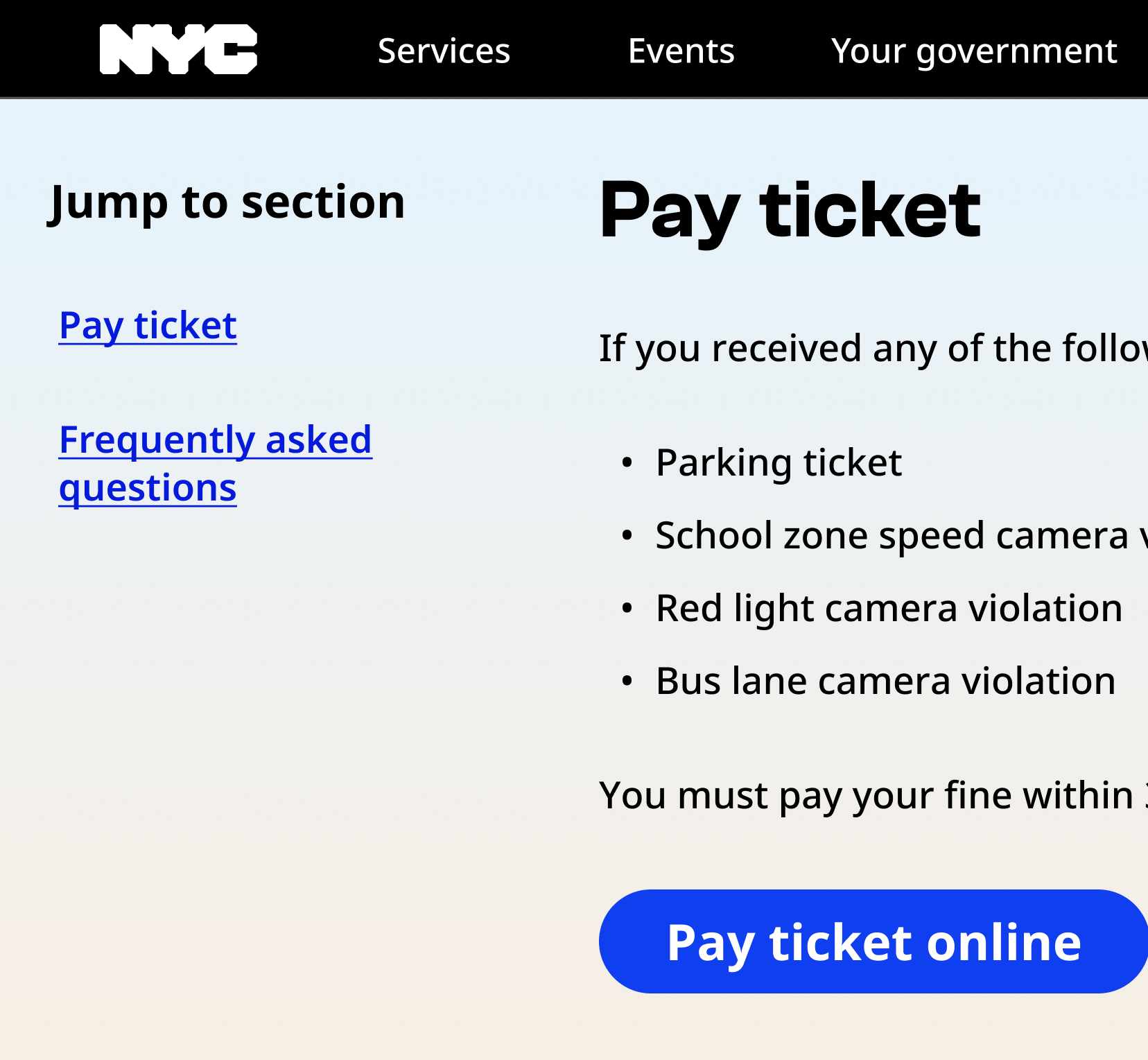
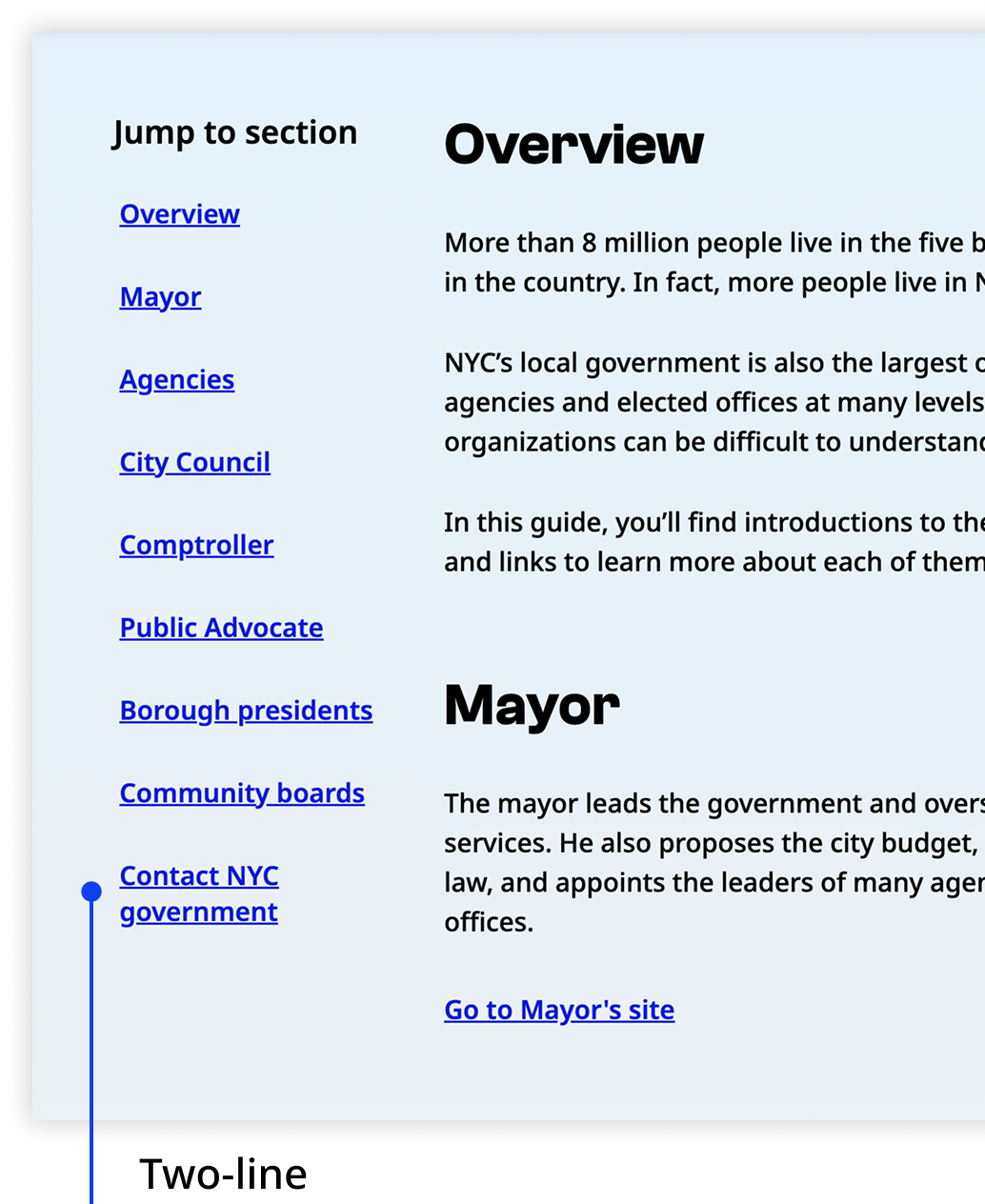
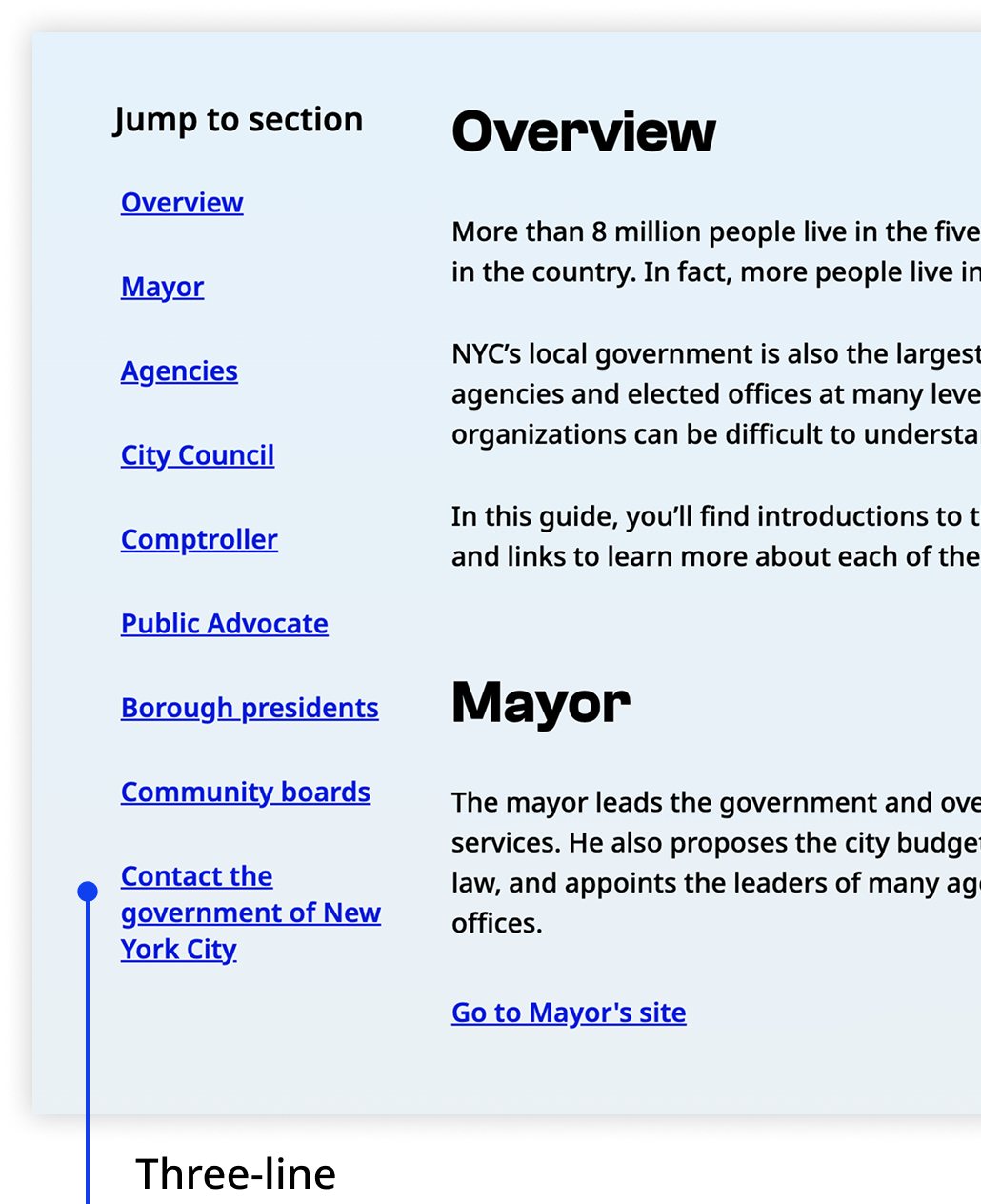
Jump link labels can break onto two lines, but never three.
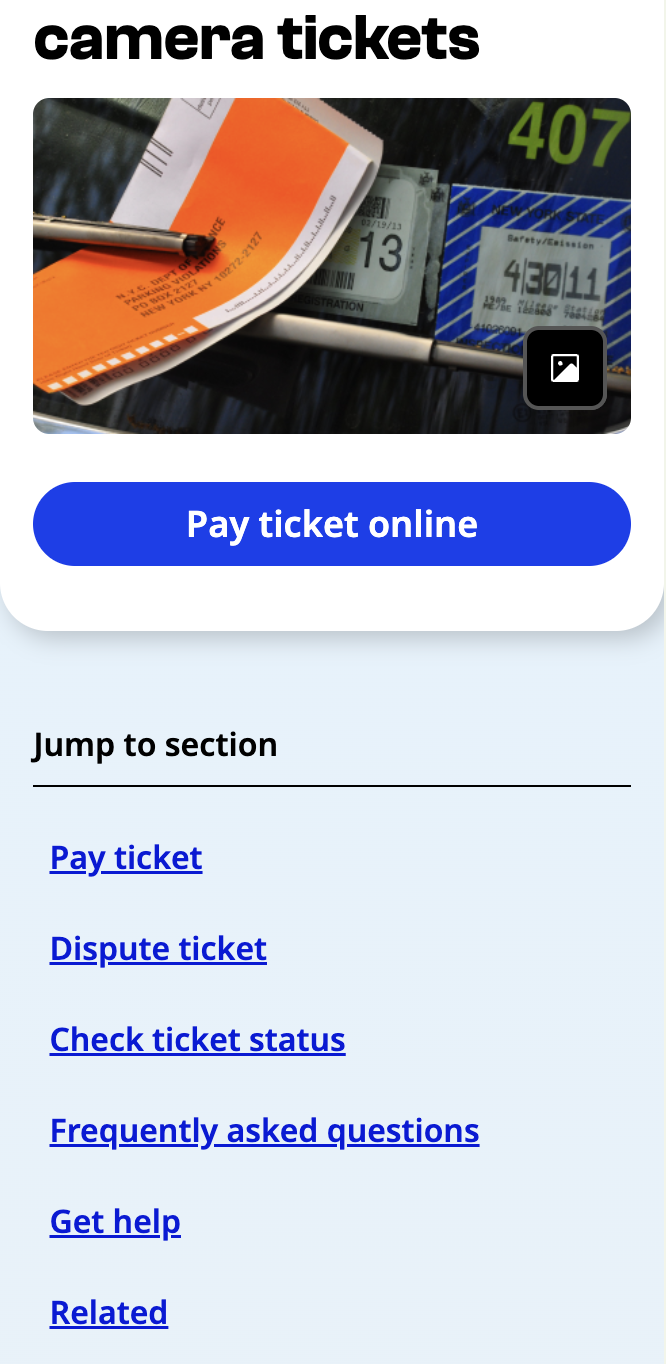
On mobile, jump links are placed directly under the page hero.
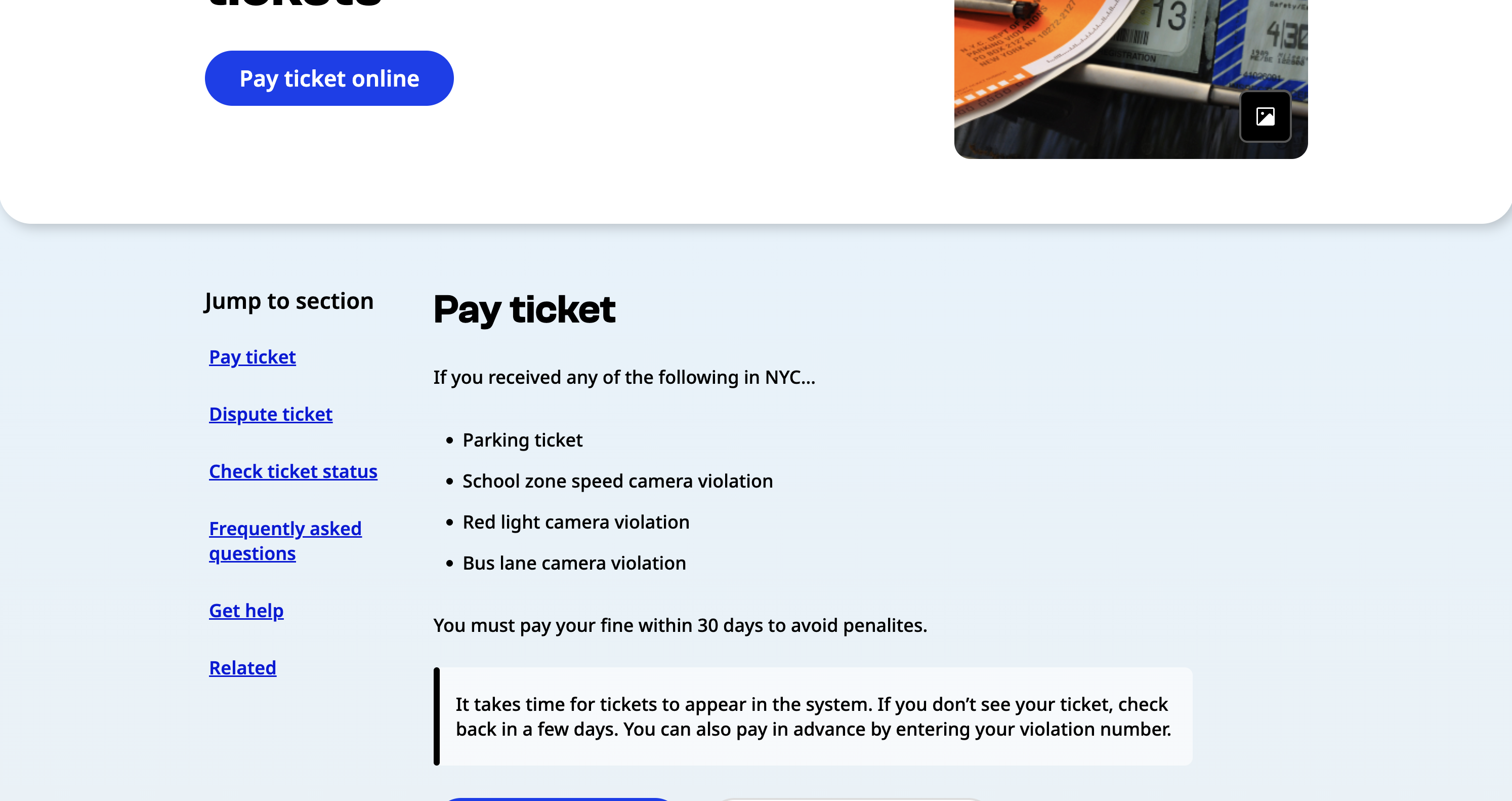
On desktop, jump links are placed to the left of the first body section below the hero.
Jump links are only for jumping to headers on the same page as the component. Never use a jump link for linking off-page.
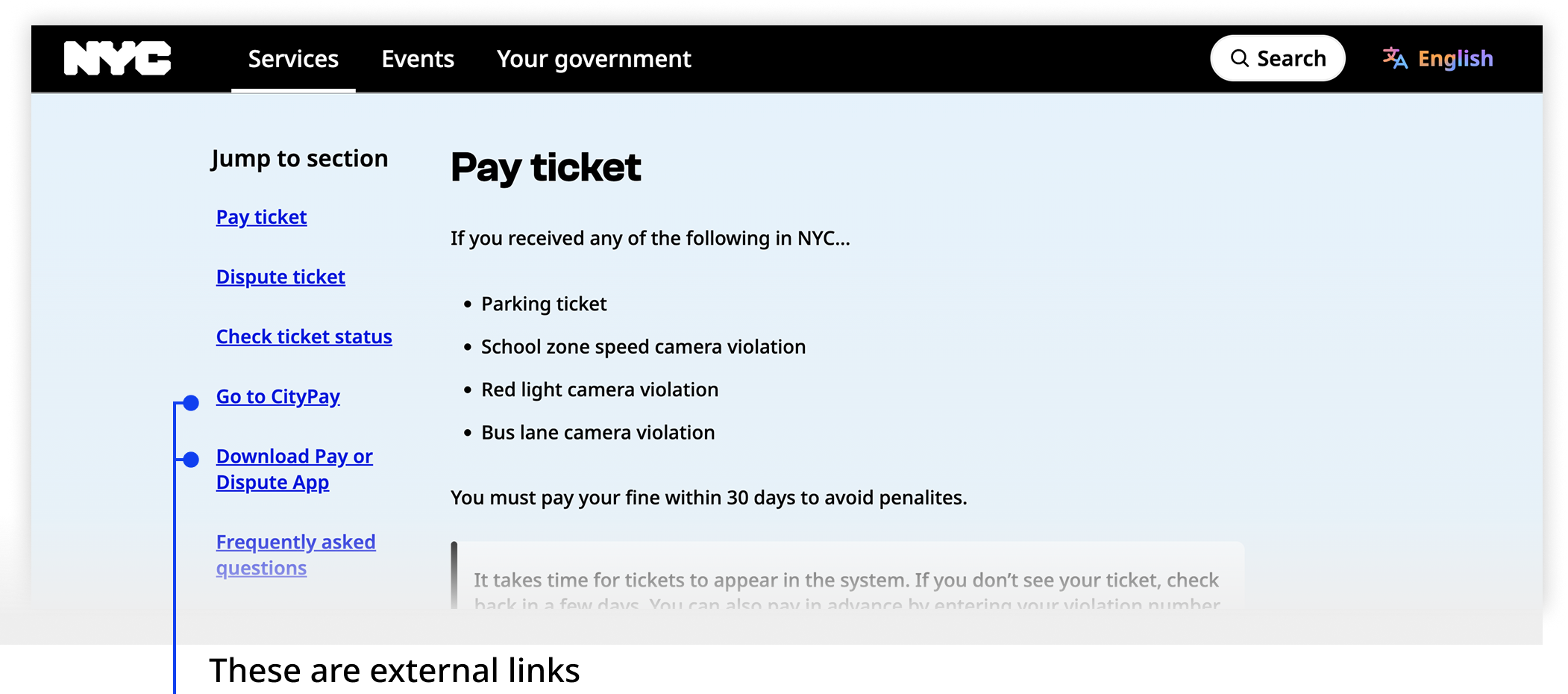
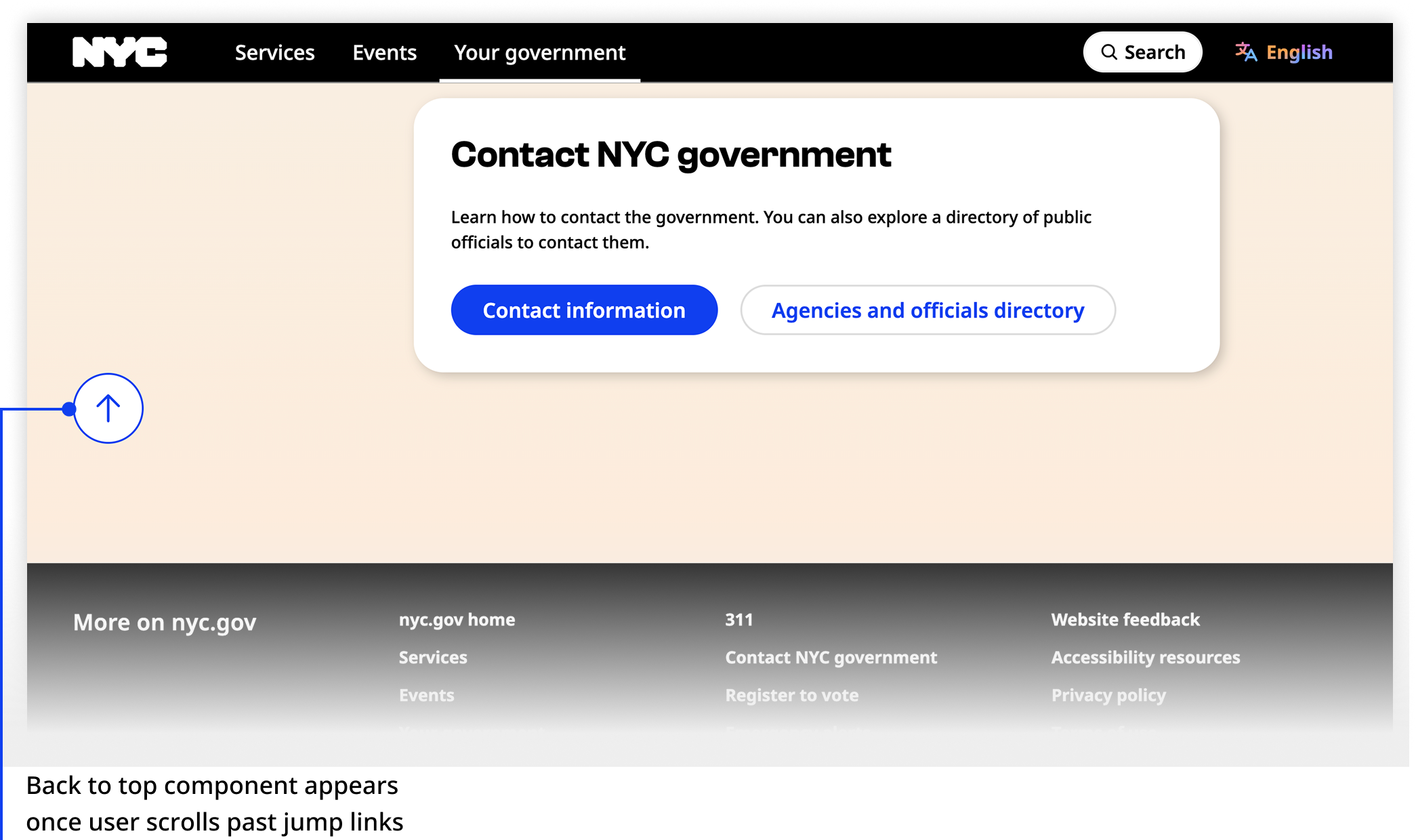
Jump links are not sticky. Use the back to top component to allow the user to quickly access the jump links from anywhere on the page.
Default
The Jump Links component can be utilized with a container with the nyc-jump-links class, and the following elements:
- Header element:
h2.nyc-jump-links__title - Unordered list:
ul: The list should contain list items with anchor links (no external links)
Linked Content
Example section
Lorem ipsum dolor sit amet, consectetur adipiscing elit. Pellentesque vitae urna ac neque posuere fringilla.
Second example section
Lorem ipsum dolor sit amet, consectetur adipiscing elit. Pellentesque vitae urna ac neque posuere fringilla.
Third example section
Lorem ipsum dolor sit amet, consectetur adipiscing elit. Pellentesque vitae urna ac neque posuere fringilla.
Another example section
Lorem ipsum dolor sit amet, consectetur adipiscing elit. Pellentesque vitae urna ac neque posuere fringilla.
Example of a longer title for a section
Lorem ipsum dolor sit amet, consectetur adipiscing elit. Pellentesque vitae urna ac neque posuere fringilla.
<div class="code-examples">

  <!-- START -->
  <nav class="nyc-jump-links">
    <h2 class="nyc-jump-links__title">Table of Contents</h2>
    <ul>
      <li><a href="#first-example">Example jump link to section</a></li>
      <li><a href="#second-example">Second example jump link</a></li>
      <li><a href="#third-example">Third example jump link</a></li>
      <li><a href="#another-example">Another example jump link</a></li>
      <li><a href="#long-example">Example of a longer title for a jump link</a></li>
    </ul>
  </nav>
  <!-- END -->

  <div class="example-content">
    <h2>Linked Content</h2>
    <h4 id="first-example">Example section</h4>
    <p>Lorem ipsum dolor sit amet, consectetur adipiscing elit. Pellentesque vitae urna ac neque posuere fringilla.</p>
    <h4 id="second-example">Second example section</h4>
    <p>Lorem ipsum dolor sit amet, consectetur adipiscing elit. Pellentesque vitae urna ac neque posuere fringilla.</p>
    <h4 id="third-example">Third example section</h4>
    <p>Lorem ipsum dolor sit amet, consectetur adipiscing elit. Pellentesque vitae urna ac neque posuere fringilla.</p>
    <h4 id="another-example">Another example section</h4>
    <p>Lorem ipsum dolor sit amet, consectetur adipiscing elit. Pellentesque vitae urna ac neque posuere fringilla.</p>
    <h4 id="long-example">Example of a longer title for a section</h4>
    <p>Lorem ipsum dolor sit amet, consectetur adipiscing elit. Pellentesque vitae urna ac neque posuere fringilla.</p>
  </div>

</div>