Text area
A text area lets users enter long-form text that spans multiple lines.
Overview
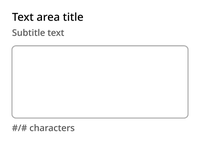
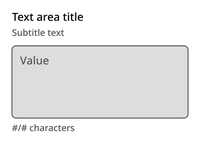
The text area component consists of a title, optional subtitle, text container, and a character limit indicator.
Default
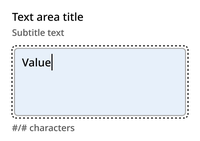
Typing
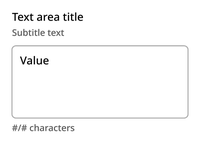
Filled
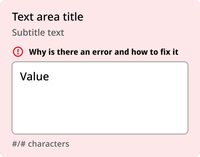
Error
Disabled
Usage context
When to use
Use the text area field for:
- Capturing long-form text input, such as comments or descriptions
- Providing a flexible input field for messages or feedback
- Allowing users to enter detailed information without constraints
When to use something else
Don’t use text input in the following scenarios:
- Date selectors (use a date input instead)
- Short text entries that can fit on one line (use the text input component instead)
- Displaying text that the user cannot edit
Text area
The text area can be utilized with an nyc-field class container, with the following items:
- Label element: This acts as the button
- Text area element: After the label
- Character count element:
.nyc-field__char-count: Displays the number of characters entered and the maximum allowed. This should be placed immediately after the text area element. - Error element (optional):
.error-message: Provides error messaging for the input. This should be placed after the label and before the input element. - Subtitle element (optional):
.subtitle: Provides additional context for the text area. This should be placed between the label and text area elements.
Subtitle text
#/# characters
Subtitle text
#/# characters
Subtitle text
#/# characters
<div class="code-examples">
  <div class="nyc-field">
    <label for="default-textarea">Default Text Area Label</label>
    <span class="subtitle">Subtitle text</span>
    <textarea rows="3" id="default-textarea" maxlength="100"></textarea>
    <span class="nyc-field__char-count subtitle">#/# characters</span>
  </div>

  <div class="nyc-field nyc-field--error">
    <label for="error-textarea">Error Text Area Label</label>
    <span class="subtitle">Subtitle text</span>
    <div class="error-message"><i class="i-ph:warning-circle-bold"></i>This field is required.</div>
    <textarea rows="3" id="error-textarea" maxlength="100"></textarea>
    <span class="nyc-field__char-count subtitle">#/# characters</span>
  </div>

  <div class="nyc-field">
    <label for="disabled-textarea">Disabled Text Area Label</label>
    <span class="subtitle">Subtitle text</span>
    <textarea rows="3" id="disabled-textarea" maxlength="100" disabled>Unchangeable value</textarea>
    <span class="nyc-field__char-count subtitle">#/# characters</span>
  </div>
</div>

<script>
  function updateCharCount() {
    const charCount = this.value.length;
    const maxLength = this.getAttribute('maxlength');
    this.parentNode.querySelector('.nyc-field__char-count').textContent = `${charCount}/${maxLength} characters`;
  }
  document.querySelectorAll('.nyc-field textarea').forEach(textarea => {
    textarea.addEventListener('input', updateCharCount);
    updateCharCount.call(textarea);
  });
</script>