Getting started for designers
Overview
Visual and UX designers in city government must use the NYC Digital Design System to create and iterate on digital products.
The primary way designers work with the design system is using Figma. Figma is the industry-standard tool for designing digital products, and will enable you to use the latest versions of the design system’s components, patterns, and templates in your mockups and prototypes.
If you’re a designer working for NYC government, here’s how you can get started using the design system.
1. Request an onboarding session
The first step is to reach out to the Digital Service team in the Office of Technology and Innovation (OTI). We’ll assess your needs and make sure the design system is right for your use case. If it is, we’ll set you up with a Figma license so you can access the design system in your workspace.
Contact us to request an onboarding session.
2. Set up Figma libraries
Once you have access to Figma, follow these steps to add the NYC Digital Design System library to your workspace.
New to Figma? These educational videos from Figma will help you get familiar with the tool.
Open a new design file
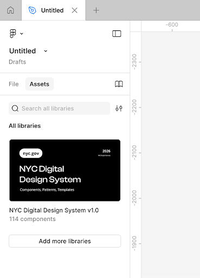
Start by opening a blank design file in Figma. If you’ve received a Figma license from OTI, our design system library will already be installed. If you’re in a non-OTI Figma account, click the library icon located in the 'Assets' panel to manage your libraries.
(Optional) Declutter your workspace
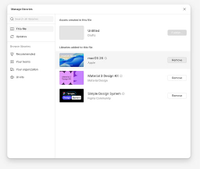
Remove any libraries you don’t need, such as the “Figma Simple Design System” or “Material 3 Design Kit.” This will help simplify your Figma experience by removing duplicate assets from other design systems that aren’t relevant.
Add the NYC Digital Design System
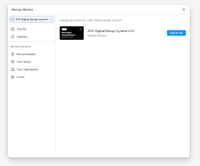
If you don’t see the “NYC Digital Design System” library, search for it and click the 'Add to file' button.
Confirm the library is installed
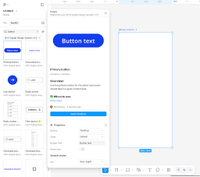
You should now be able to add assets from the NYC Digital Design System library to your file. As a test, search for ‘button’ using the assets panel and add a button to your workspace. If you’re having trouble finding assets for the NYC Digital Design System, reach out to us for help.
3. Get familiar with design tokens
Design tokens represent styles like colors, fonts, spacing measurements, drop shadows, and more. They act as a source of truth for design choices because they’re named specifically to tell developers why your design is styled a specific way. You can review them in the Design Tokens page in the Figma library.
What are design tokens?
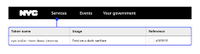
Tokens represent specific style decisions. They replace static values with descriptors that communicate the context surrounding it. In the example below, hex value #FFFFFF (white) loses layers of context compared to sys-color-text-base-inverse, which shows developers your text needs to be white and not the default black so it is legible on a dark background color.
Why we use tokens
Tokens set standards for styling by assigning usage contexts to colors, typography, and interactions. For example, we’ve assigned white to always be the color for text on black surfaces because it is the most accessible. Using this token also creates the most consistent user experience across nyc.gov.
Tokens help designers and developers speak the same language, because developers will also be familiar with tokens. This way, your collaboration can be clearer and more efficient, especially during hand-off.
Our tokens are centrally maintained in the design system, which means they’ll always automatically update and you won’t need to manually change token styles across your files.
Anatomy of a token
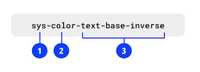
- Token class. Classes distinguish the role of your style value. There are 3 classes:
- Reference (ref), which basically gives a style value a standard name (e.g., #103FEF is “blue 40” in a range of blues we use), similar to a color palette without hierarchy in a brand guideline.
- System (sys), which wraps context around reference tokens to communicate the specific function of your style value, often used for system-wide style decisions (similar to assigning primary, secondary, and accent colors in a brand guideline)
- Component (cmp), which are specific tokens used for components and their own usage contexts.
- Token role. This specifies what your style is, like a color or font
- Value. This describes the root value for the token, and is usually the name you’re looking for. In this example, designers are looking for the text color style that’s suitable for dark backgrounds.
If you’d like to learn more about tokens, Google Material design system has a great guide to getting started.
4. Start designing!
You can now use the design system to create mockups and prototypes for your digital products. Make sure you refer back to this website for information about brand guidelines, content, and when to use each component.
We recommend starting by designing one complete end-to-end user journey. For example, follow a user from landing on a homepage to learning about a process to completing a transaction.
5. Schedule a design review
The Digital Service team is here to help you use the design system to its maximum potential. Designers are required to have at least two reviews with us:
- At the beginning of the design phase, after you’ve mocked up one important user journey
- At the end of the design phase, after all mockups are complete and before the product is built
We are also available to help with the following:
- Questions about using styles, tokens, and Figma libraries
- Visual design feedback including interfaces, interactions, and layouts
- User experience feedback including user flows, component usage, and task analysis
6. Keep the library up to date
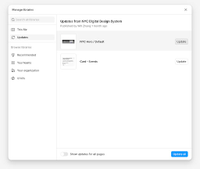
We’ll release periodic updates to the NYC Digital Design System. When an update is available, a blue dot will appear on the book icon in the left panel. Review what’s changed in the ‘Manage libraries’ screen and click ‘Update all’ to get the latest versions.